Google Search Console Guide 2026: Complete Beginner to Advanced Tutorial
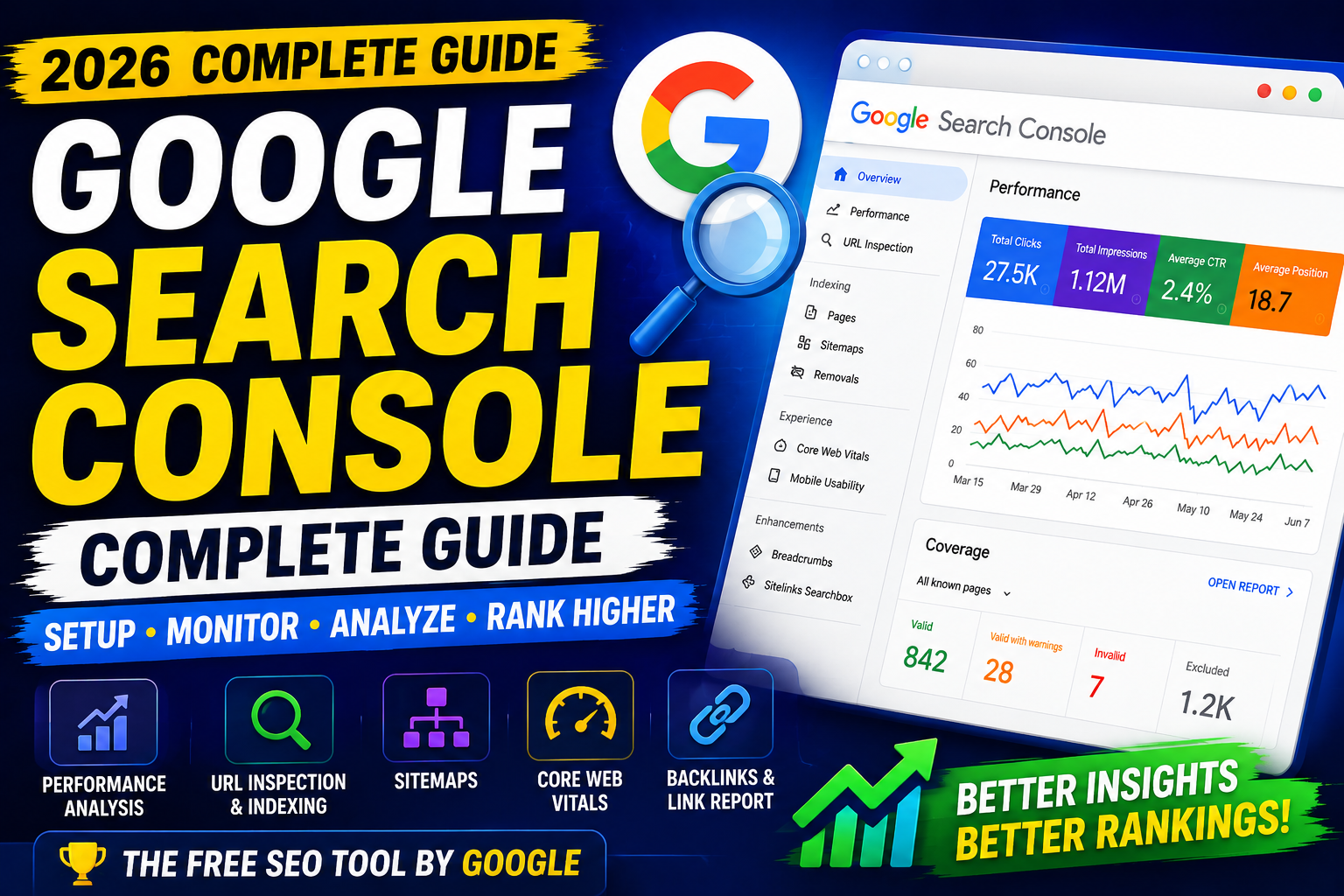
Introduction
If you own a website, blog, eCommerce store, or online business, Google Search Console (GSC) is one of the most important free SEO tools you should use.
Google Search Console helps you understand how your website performs in Google Search. It provides valuable insights into search traffic, indexing, crawl errors, Core Web Vitals, keywords, backlinks, and much more.
Whether you're a beginner or an experienced SEO professional, mastering Google Search Console can help you improve your website's visibility, identify technical issues, and grow organic traffic.
In this complete guide, you'll learn everything about Google Search Console—from setup and verification to advanced SEO analysis.
What is Google Search Console?
Google Search Console (GSC) is a free tool from Google that helps website owners monitor, maintain, and improve their site's presence in Google Search.
With GSC, you can:
Monitor website performance
Track keywords
Submit XML sitemaps
Request indexing
Find crawl errors
Improve Core Web Vitals
Monitor backlinks
Fix technical SEO issues
Why is Google Search Console Important?
Benefits include:
✅ Free SEO Tool
✅ Monitor Organic Traffic
✅ Keyword Performance
✅ Indexing Reports
✅ Core Web Vitals
✅ Website Health Monitoring
✅ Technical SEO Improvements
How to Set Up Google Search Console
Step 1
Visit:
https://search.google.com/search-console
Sign in with your Google account.
Step 2
Click:
Add Property
Step 3
Choose one:
Domain Property
Tracks every version of your website.
Example:
example.com
Requires DNS verification.
URL Prefix Property
Tracks only one URL version.
Example:
https://www.example.com
Supports multiple verification methods.
Step 4
Verify Ownership
Available methods:
✅ DNS Record
✅ HTML File Upload
✅ HTML Meta Tag
✅ Google Analytics
✅ Google Tag Manager
DNS verification is recommended because it covers all subdomains and protocols.
Google Search Console Dashboard
The dashboard includes:
Overview
Performance
URL Inspection
Indexing
Sitemaps
Experience
Enhancements
Security & Manual Actions
Links
Settings
Performance Report
One of the most valuable reports.
Track:
Total Clicks
Total Impressions
Average CTR
Average Position
You can filter by:
Query
Page
Country
Device
Search Appearance
Date Range
Use this report to discover opportunities for improving titles, meta descriptions, and content.
URL Inspection Tool
Use it to:
Check indexing status
Request indexing
View crawl information
Test live URLs
Diagnose indexing issues
After publishing or updating important content, you can request indexing to notify Google of the changes.
Indexing Report
Shows:
Indexed Pages
Non-Indexed Pages
Crawl Issues
Excluded URLs
Common reasons pages aren't indexed:
Noindex tag
Blocked by robots.txt
Duplicate pages
Soft 404
Redirects
Crawl anomalies
XML Sitemap
Generate a sitemap using your CMS or SEO plugin.
Common sitemap URL:
https://yourwebsite.com/sitemap.xml
Submit it in:
Indexing → Sitemaps
Submitting a sitemap helps Google discover your content more efficiently.
Core Web Vitals
Monitor three important metrics:
Largest Contentful Paint (LCP)
Target:
Under 2.5 seconds
Interaction to Next Paint (INP)
Target:
Under 200 ms
Cumulative Layout Shift (CLS)
Target:
Below 0.1
Improving these metrics enhances both user experience and SEO.
Mobile Usability
Ensure your website is:
Responsive
Easy to navigate
Free from mobile usability issues
Fast-loading on mobile devices
Since Google uses Mobile-First Indexing, mobile performance is critical.
Search Queries
Discover:
Which keywords generate traffic
Average rankings
Click-through rates
Growth opportunities
Focus on keywords ranking between positions 8–20, as these often offer the biggest opportunities for improvement.
Page Performance
Identify:
Best-performing pages
Underperforming content
Pages with high impressions but low CTR
Improve these pages by optimizing titles, meta descriptions, and content.
Country Report
Analyze traffic by country.
Useful for:
International SEO
Geo-targeting
Local content strategies
Device Report
Compare performance across:
Desktop
Mobile
Tablet
Use this information to prioritize user experience improvements.
Links Report
Google Search Console provides:
External Links
Websites linking to your content.
Internal Links
How pages connect within your site.
Strong internal linking helps search engines understand your website structure.
Security & Manual Actions
Monitor for:
Security issues
Malware
Hacked pages
Manual penalties
Resolve issues promptly to maintain your site's reputation.
Rich Results
If you're using structured data (Schema Markup), GSC reports any errors or warnings affecting eligibility for rich results.
Supported examples include:
FAQ
Article
Product
Breadcrumb
Review
Common Google Search Console Errors
Watch for:
❌ Submitted URL not found (404)
❌ Duplicate without user-selected canonical
❌ Crawled – currently not indexed
❌ Discovered – currently not indexed
❌ Blocked by robots.txt
❌ Soft 404
❌ Server Errors (5xx)
Fixing these issues can improve crawlability and indexing.
Best Practices
✔ Submit XML Sitemap
✔ Check Performance Weekly
✔ Monitor Indexing Status
✔ Improve Core Web Vitals
✔ Fix Crawl Errors
✔ Optimize Low-CTR Pages
✔ Request Indexing After Major Updates
✔ Monitor Backlinks
✔ Review Manual Actions Regularly
Google Search Console vs Google Analytics
| Feature | Google Search Console | Google Analytics 4 |
|---|---|---|
| Organic Search Data | ✅ | Limited |
| Website Traffic | Partial | ✅ |
| User Behavior | ❌ | ✅ |
| Keyword Performance | ✅ | Limited |
| Conversions | ❌ | ✅ |
| Technical SEO | ✅ | ❌ |
| Indexing Reports | ✅ | ❌ |
Both tools complement each other and should be used together.
AI + Google Search Console
AI tools can help you analyze GSC data more effectively.
Use AI to:
Identify keyword opportunities
Generate content ideas
Improve titles & meta descriptions
Analyze CTR trends
Create topic clusters
Plan content updates
Helpful AI tools:
ChatGPT
Google Gemini
Claude AI
Always validate AI recommendations with actual Search Console data.
Common Mistakes to Avoid
Avoid:
❌ Ignoring indexing issues
❌ Never submitting a sitemap
❌ Forgetting to request indexing
❌ Ignoring low CTR pages
❌ Not checking Core Web Vitals
❌ Overlooking mobile performance
❌ Ignoring backlink reports
Final Thoughts
Google Search Console is one of the most valuable tools for improving your website's SEO.
It gives you direct insights from Google, helping you understand how your content performs, where technical issues exist, and what opportunities you have to grow your organic traffic.
Checking GSC regularly, fixing issues quickly, and combining its data with quality content and technical SEO will significantly improve your website's long-term performance.
Frequently Asked Questions (FAQs)
1. What is Google Search Console?
Google Search Console is a free Google tool that helps website owners monitor search performance, indexing, technical SEO, and website health.
2. Is Google Search Console free?
Yes. Google Search Console is completely free to use.
3. How often should I check Google Search Console?
Review it at least once a week to monitor performance, indexing, and technical issues. Daily checks may be useful for larger websites.
4. What is the difference between Google Search Console and Google Analytics?
Google Search Console focuses on search performance and indexing, while Google Analytics tracks user behavior, engagement, and conversions.
5. Why are my pages not indexed?
Common reasons include duplicate content, noindex tags, crawl issues, robots.txt restrictions, soft 404s, or low-value content.
6. Can Google Search Console improve SEO?
Indirectly, yes. It helps identify problems and opportunities, allowing you to optimize your website for better search visibility and rankings.