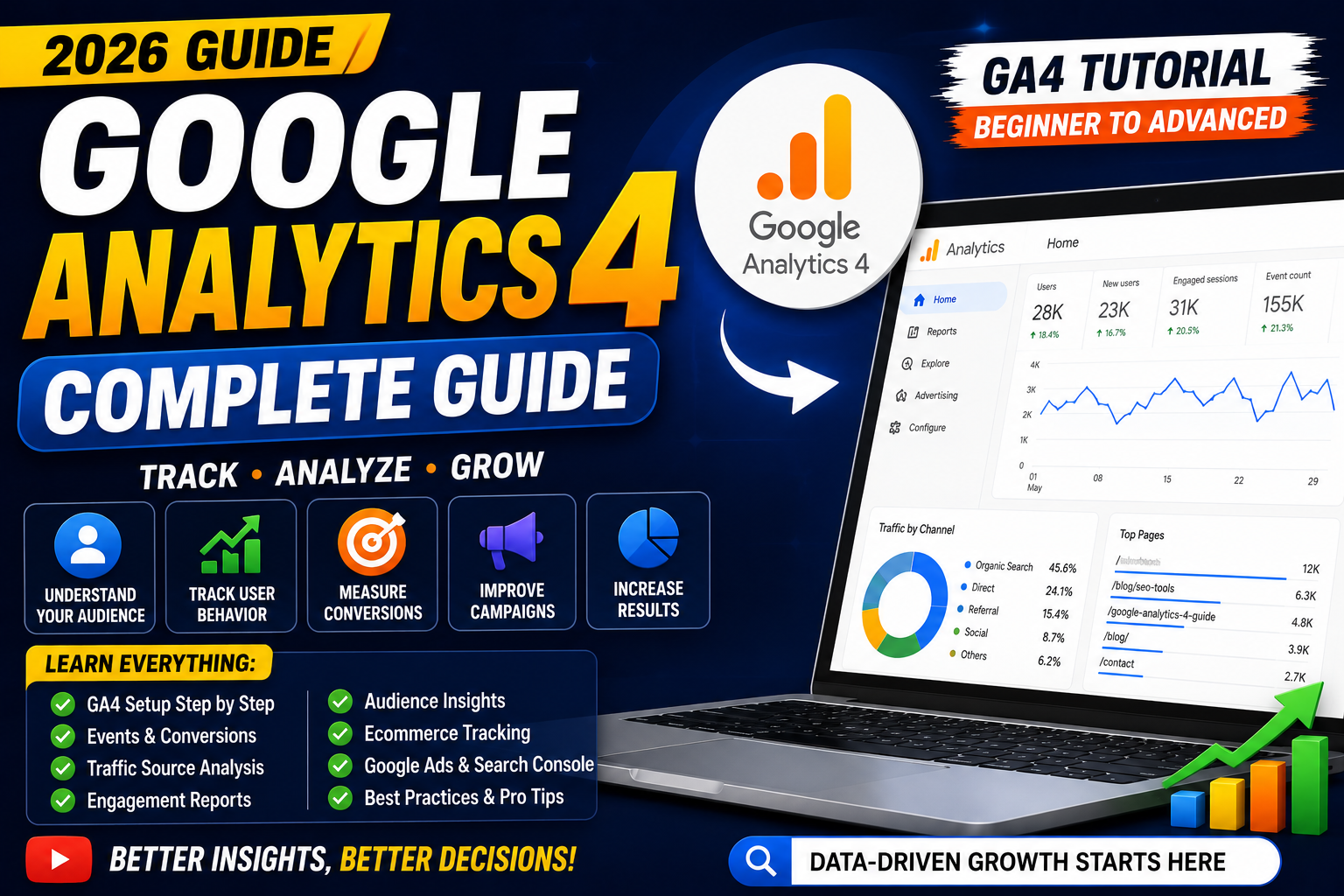
Google Analytics 4 (GA4) Guide 2026: Complete Beginner to Advanced Tutorial
Introduction
Understanding how visitors interact with your website is essential for making better business and marketing decisions. Whether you're a blogger, business owner, digital marketer, developer, or eCommerce seller, Google Analytics 4 (GA4) helps you track user behavior, measure performance, and optimize your website for growth.
Unlike previous versions of Google Analytics, GA4 uses an event-based data model, offering deeper insights into user interactions across websites and mobile apps while prioritizing privacy and machine learning.
In this complete Google Analytics 4 Guide, you'll learn everything from setting up GA4 to analyzing reports, tracking conversions, understanding audiences, and using data to improve your website's performance.
What is Google Analytics 4 (GA4)?
Google Analytics 4 (GA4) is Google's free analytics platform that helps website owners and businesses understand how users interact with their websites and applications.
With GA4, you can:
Track website visitors
Measure traffic sources
Monitor user engagement
Analyze conversions
Understand audience behavior
Track events
Improve marketing campaigns
Why Use Google Analytics 4?
Benefits include:
✅ Free Website Analytics
✅ User Behavior Tracking
✅ Traffic Source Analysis
✅ Event-Based Tracking
✅ Conversion Measurement
✅ Audience Insights
✅ Cross-Platform Tracking
✅ AI-Powered Predictions
Google Analytics 4 vs Universal Analytics
| Feature | Universal Analytics | GA4 |
|---|---|---|
| Data Model | Session-based | Event-based |
| Cross-device Tracking | Limited | Advanced |
| AI Insights | Limited | Yes |
| Privacy Controls | Basic | Improved |
| Predictive Metrics | No | Yes |
| Future Support | Discontinued | Current Standard |
How GA4 Works
GA4 collects data through events instead of sessions.
Examples of events:
Page Views
Scrolls
Button Clicks
File Downloads
Video Plays
Form Submissions
Purchases
Sign-ups
Every interaction can be measured as an event.
Setting Up Google Analytics 4
Step 1
Visit:
Sign in with your Google account.
Step 2
Create a new GA4 Property.
Enter:
Property Name
Time Zone
Currency
Step 3
Create a Data Stream.
Choose:
Website
Android App
iOS App
Step 4
Install the Tracking Code.
You can install GA4 using:
Google Tag Manager
Manual gtag.js
CMS plugins (WordPress, Blogger, Shopify, etc.)
Google Analytics Dashboard
The dashboard includes:
Home
Reports
Explore
Advertising
Configure
Admin
Each section provides different insights into your website's performance.
Real-Time Report
Monitor live activity on your website.
Track:
Active users
Current pages
Traffic sources
Device types
Locations
Useful for testing campaigns and verifying tracking.
Acquisition Reports
Understand where your visitors come from.
Traffic channels include:
Organic Search
Direct
Referral
Social
Email
Paid Search
Display Ads
Analyze which channels drive the most valuable traffic.
Engagement Reports
Measure how users interact with your content.
Key metrics:
Engaged Sessions
Average Engagement Time
Event Count
Views
Landing Pages
Use these reports to identify your most engaging content.
Audience Reports
Learn about your visitors.
Analyze:
Country
City
Language
Device
Browser
Age (where available)
Interests (where available)
This helps you better understand your target audience.
Events
Everything in GA4 revolves around events.
Common events include:
page_view
scroll
click
file_download
form_submit
purchase
login
sign_up
You can also create custom events for specific business goals.
Conversions (Key Events)
Mark important events as Key Events (formerly called conversions).
Examples:
Contact Form Submission
Newsletter Signup
Product Purchase
Appointment Booking
Demo Request
Tracking these helps measure business success.
Traffic Sources
Understand how users find your website.
Common sources:
Google Search
Bing
LinkedIn
X (Twitter)
Pinterest
YouTube
Email Campaigns
Referral Websites
Compare channel performance to optimize your marketing strategy.
Landing Pages
Identify:
Most visited pages
Highest engagement pages
Pages with high bounce or exit rates
Optimize these pages for better conversions and SEO.
Ecommerce Tracking
If you run an online store, GA4 can measure:
Product Views
Add to Cart
Checkout
Purchases
Revenue
Average Order Value
Requires enhanced ecommerce setup.
Explore Reports
Create custom reports using:
Funnel Exploration
Path Exploration
Cohort Analysis
User Segments
Free-form Reports
Ideal for advanced analysis.
Google Analytics + Google Search Console
Connect GA4 with Google Search Console to combine:
Search performance
Organic traffic
Landing page behavior
This gives a more complete view of your SEO performance.
Google Analytics + Google Ads
Link GA4 with Google Ads to:
Measure campaign performance
Track conversions
Build remarketing audiences
Analyze ROAS
Custom Audiences
Create audiences based on user behavior.
Examples:
Returning Visitors
Purchasers
High Engagement Users
Cart Abandoners
Useful for personalized marketing and remarketing.
Recommended Events
Google recommends tracking:
sign_up
login
purchase
search
generate_lead
add_to_cart
begin_checkout
view_item
Using recommended event names improves reporting consistency.
Key Metrics to Monitor
Regularly track:
Users
New Users
Sessions
Engaged Sessions
Engagement Rate
Average Engagement Time
Event Count
Key Events
Revenue
Traffic Sources
Common GA4 Mistakes
Avoid:
❌ Installing the tracking code twice
❌ Ignoring conversion tracking
❌ Not filtering internal traffic
❌ Forgetting to connect Search Console
❌ Ignoring event reports
❌ Not verifying data after setup
Best Practices
✔ Install GA4 correctly
✔ Enable Enhanced Measurement
✔ Track important events
✔ Create Key Events
✔ Connect Google Search Console
✔ Connect Google Ads
✔ Review reports weekly
✔ Monitor acquisition channels
✔ Analyze landing page performance
✔ Use Explore reports for deeper insights
AI + Google Analytics 4
AI can help you:
Analyze traffic trends
Identify user behavior patterns
Suggest content improvements
Optimize marketing campaigns
Interpret reports
Create dashboards
Helpful AI tools:
ChatGPT
Google Gemini
Claude AI
Always validate AI insights using your actual analytics data.
Final Thoughts
Google Analytics 4 is more than just a visitor counter—it's a powerful platform for understanding how users interact with your website and how your marketing efforts perform.
By learning to interpret GA4 reports and acting on the insights they provide, you can improve user experience, increase conversions, and make data-driven decisions that support long-term growth.
Whether you're running a personal blog or a large online business, GA4 is an essential tool for measuring success.
Frequently Asked Questions (FAQs)
1. What is Google Analytics 4?
Google Analytics 4 (GA4) is Google's free analytics platform that tracks website and app user behavior using an event-based data model.
2. Is Google Analytics 4 free?
Yes. GA4 is free to use, although enterprise users may choose Google Analytics 360 for advanced features.
3. What is the difference between GA4 and Universal Analytics?
GA4 uses event-based tracking, offers better cross-device measurement, enhanced privacy features, and AI-powered insights, while Universal Analytics relied primarily on sessions.
4. Can I use GA4 with Blogger or WordPress?
Yes. GA4 can be installed on Blogger, WordPress, Shopify, Wix, and most other website platforms using tracking code, Google Tag Manager, or plugins.
5. How often should I check GA4?
For most websites, reviewing GA4 weekly is sufficient. Daily monitoring may be useful during active campaigns or website launches.
6. Can GA4 improve SEO?
GA4 doesn't directly improve rankings, but it helps you understand user behavior, engagement, and landing page performance, allowing you to make better SEO and content decisions.